 Stopwatch Max Blog
 How to use your Apple Watch as a hands-free stopwatch
Use Stopwatch Max to start, lap, and return to your Apple Watch stopwatch with double-tap, the side button, Siri Shortcuts, and a watch face complication.
A stopwatch is supposed to help you keep moving. The moment it makes you stop, unlock a screen, wipe sweat off your fingers, or aim at a tiny button mid-task, it starts getting in the way.
Stopwatch Max gives you a few ways to control timing from your wrist without treating the Apple Watch screen like a phone screen. Use the display when it is convenient. Use gestures, hardware, or voice when it is not.
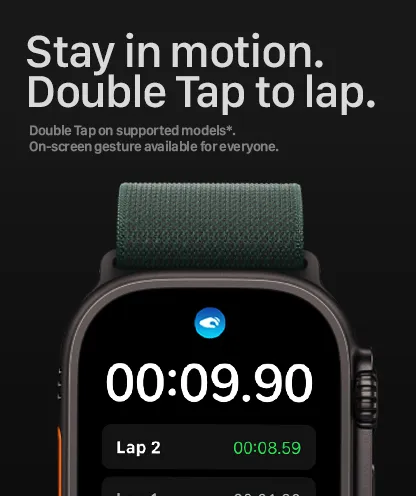
Double-tap to capture a lap
Double-tap is the fastest option when your wrist is free but your other hand is not. Raise your watch, double-tap, and Stopwatch Max records a lap without forcing you to hit a small on-screen target.
That matters during runs, bike efforts, circuit training, and drills where the lap moment is brief. You do not want to slow down to make the watch cooperate. You want the watch to mark the split and let you keep moving.
Use the side button when conditions get messy
Touch gestures are convenient, but physical controls still win when conditions are rough. Gloves, water, chalk, cold fingers, and sweaty hands all make screens less reliable.
The side button gives you a tactile fallback. Press it when you need certainty more than elegance. Stopwatch Max records the lap and keeps the current timing flow visible so you can get back to the work instead of checking whether the tap landed.
Use Siri when both hands are busy
Sometimes even the watch hand is occupied. You might be holding a barbell, stirring a pot, coaching a drill, or working with gloves on both hands. That is where Siri Shortcuts fit.
Set up the Stopwatch Max shortcut, then use your voice to start, lap, or reset. It is not the quietest option, but it is the least disruptive when both hands are already doing something else.
| Control | Best when | Why it helps |
|---|---|---|
| Double-tap | Moving fast | Captures a lap without aiming at the screen |
| Side button | Gloves, sweat, water, cold | Uses a physical click instead of touch input |
| Siri | Both hands are occupied | Lets your voice control the stopwatch |
| Complication | You need quick return | Puts Stopwatch Max one tap from the watch face |
Keep Stopwatch Max on your watch face
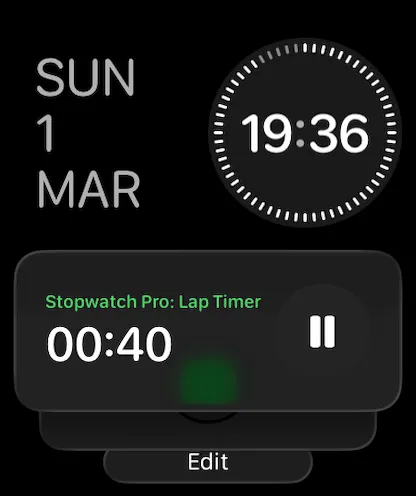
Hands-free control is only useful if the stopwatch is easy to reach in the first place. Add the Stopwatch Max complication to your watch face so timing is always one tap away.
That is especially useful for coaching, interval sessions, and repeated tasks. You can return to the timer from the face instead of hunting through the app grid while the moment you wanted to time is already passing.
What happens after you capture a lap
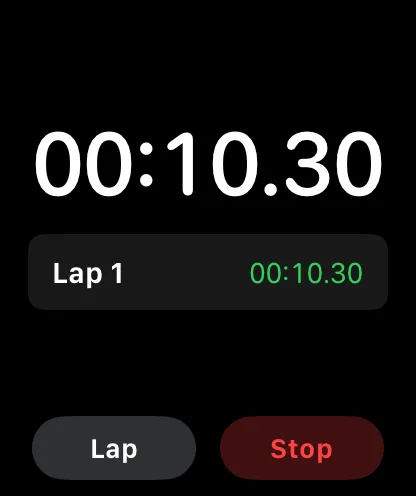
Hands-free control is only half of the workflow. Once you capture a lap, Stopwatch Max keeps the important timing context visible: total elapsed time and the current lap timer.
That means the next rep, rest interval, or drill starts immediately. You are not left staring at the previous lap and calculating the current one in your head.
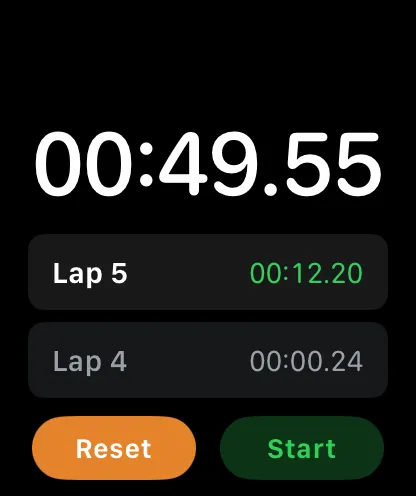
The best stopwatch control is the one you do not have to think about.
Pick the control that matches the moment
There is no single perfect input method for every situation. The right setup is usually a mix: complication for quick access, double-tap for fast lap capture, side button for rough conditions, and Siri when touching the watch is not practical.
Stopwatch Max is built around that reality. It gives you more than one way to control the same timer, so the stopwatch can adapt to the session instead of forcing the session to adapt to the watch.